

CRM64Pro Tutorial 16.1
Scene Adventure.
Build point-and-click movement, object interaction, inventory state and a smooth player-following camera from a TMX Scene.
Overview
This first Tutorial 16 example loads Base/tiled/adventure/adventure.tmx. Its image layer draws the world, while the object layer contains the player, a polygon movement area and interactable key and door objects.
Right-click movement stays inside the polygon, left-click interaction checks distance and TMX properties, and the camera follows the player smoothly. A Scene-layer callback renders timed speech while a screen-space panel displays the collected key.
Final result
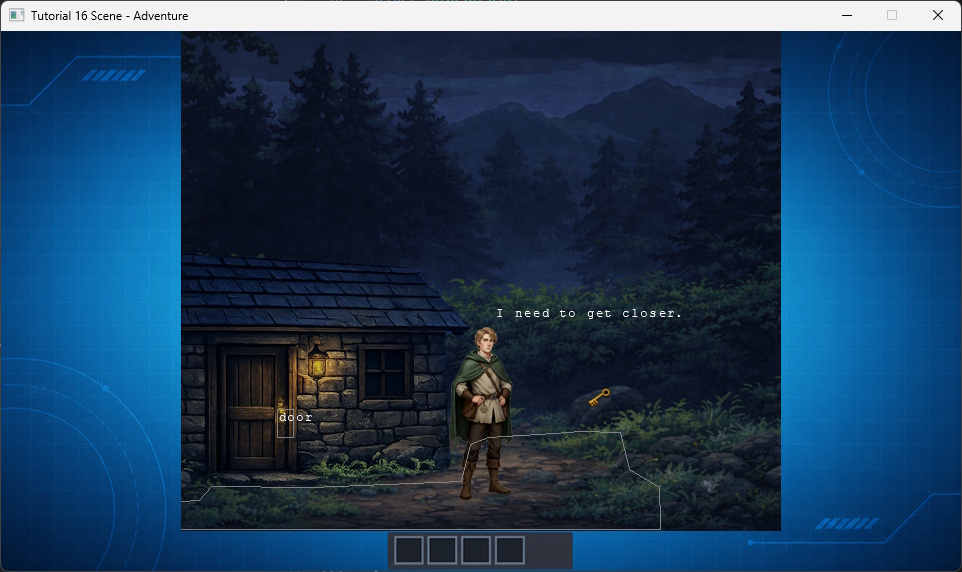
Left-click interacts or picks up an object; right-click moves the player; S toggles smooth scrolling; D toggles object and trigger debug overlays; and Q or ESC exits.
The debug toggle targets standard gameplay objects through setDebugObjectOverlay(), independently of tile and camera overlays.
Prerequisites
- CRM64Pro GDK installed and configured with a supported C++17 compiler.
- Tutorial package downloaded and fully extracted, preserving its folder structure.
- Run Tutorial 02 so
Tutorial.cdccontainsTutorial_bg. - Keep the
bin/Base/tiled/adventureTMX, TSX and image assets together. - Complete the earlier input, GFX and resource tutorials first.
What you will learn
- Load a TMX map through
SceneMgr. - Create custom objects with
ISceneObjectFactory. - Configure layers, callbacks and a target camera.
- Convert mouse coordinates and query an object layer.
- Constrain movement to a polygon.
- Drive interactions from TMX object properties.
Step by step
Step 1: Create tutorial Scene objects
The factory creates one lightweight subclass for every TMX object. Only the player instance runs the custom movement update; inherited rendering needs no override.
class AdventureRenderObject : public SceneObject
{
public:
    void update(Scene*, SceneLayerContext& rContext) override
    {
        if(!g_pState) return;
        if(g_pState->pPlayer && getID() == g_pState->pPlayer->getID())
        {
            updatePlayerMovement(rContext.fDeltaTime);
        }
    }
};

class TutorialObjectFactory : public ISceneObjectFactory
{
public:
    SceneObject* create(const string&) override
    {
        return new(std::nothrow) AdventureRenderObject();
    }
};
Step 2: Load and configure the Scene
Load the TMX with the factory, assign the centered viewport, enable both layers and attach the speech callback to the object layer.
const Sint32 iTE = mC64.sceneMgr().loadFromFile(BASEDIR "tiled/adventure/adventure.tmx", &sTutorialObjectFactory);
g_pState->pScene = mC64.sceneMgr().get(iTE);
if(!g_pState->pScene)
{
    if(pLog) pLog->msg(LL_ERROR, "Failed to load adventure map.\n");
    return false;
}

SDL_Rect rView = { iViewX, iViewY, iViewW, iViewH };
if(!g_pState->pScene->setViewport(&rView) ||
    !g_pState->pScene->setLayerFeatures(1, SLF_UPDATE | SLF_RENDER, true) ||
    !g_pState->pScene->setLayerFeatures(2, SLF_UPDATE | SLF_RENDER, true) ||
    !g_pState->pScene->setLayerFeatures(1, SLF_SMOOTHSCROLL, true) ||
    !g_pState->pScene->setLayerFeatures(2, SLF_SMOOTHSCROLL, true) ||
    !g_pState->pScene->setLayerOnRenderEnd(2, onLayerRenderSpeech))
{
    if(pLog) pLog->msg(LL_ERROR, "Failed to configure adventure Scene layers.\n");
    return false;
}
Step 3: Resolve the required TMX objects
Find the player and optional movement area by type or name. The player is required; without area_player, movement remains unrestricted.
if((pObj->getType() == "player" || pObj->getName() == "player") && !g_pState->pPlayer)
{
    g_pState->pPlayer = pObj;
    g_pState->fTargetX = pObj->getX() + (pObj->getWidth() * 0.5f);
    g_pState->fTargetY = pObj->getY() + pObj->getHeight();
}
else if((pObj->getType() == "area_player" || pObj->getName() == "area_player") && !g_pState->pAreaPlayer)
{
    g_pState->pAreaPlayer = pObj;
}
if(!g_pState->pPlayer)
{
if(pLog) pLog->msg(LL_ERROR, "Player object not found (name/type: player).\n");
return false;
}
if(!g_pState->pAreaPlayer && pLog) pLog->msg(LL_WARNING, "area_player object not found.\n");Step 4: Follow the player with a smooth camera
Use the player’s feet as the target anchor, center that point in the viewport and clamp camera movement to Scene bounds.
SceneCameraParams mCam;
mCam.fDamping = 10.0f;
mCam.bClampToBounds = true;
mCam.ptTargetAnchor = { 0.5f, 1.0f };
mCam.ptScreenAnchor = { 0.5f, 0.5f };
if(!g_pState->pScene->setCameraTarget(2, g_pState->pPlayer) ||
    !g_pState->pScene->setCameraParams(2, mCam) ||
    !g_pState->pScene->setCameraMode(2, SCM_SMOOTH))
{
    if(pLog) pLog->msg(LL_ERROR, "Failed to configure adventure camera.\n");
    return false;
}
Step 5: Query objects under the pointer
Convert the mouse from screen to layer-world coordinates, query the spatial region and keep only shapes that contain the exact point.
const bool bCursorWorldValid = (g_pState->pScene && g_pState->pObjLayer &&
    g_pState->pScene->mouseToWorld(&fWX, &fWY, 2));

if(bCursorWorldValid)
{
    vector<SceneObject*> vCandidates;
    g_pState->pObjLayer->queryRegion(fWX, fWY, 1.0f, 1.0f, vCandidates);

    for(SceneObject* pObj : vCandidates)
    {
        if(pObj && pObj->containsPoint(fWX, fWY))
        {
            vHits.push_back(pObj);
        }
    }
}
Step 6: Constrain movement to the polygon
Accept a point inside the area, try axis-aligned sliding, then fall back to the closest polygon boundary point.
// Keep a hotspot inside the player area.
static bool constrainHotspotToPlayerArea(float oldHotX, float oldHotY, float newHotX, float newHotY, float& rOutHotX, float& rOutHotY)
{
    if(isInsidePlayerArea(newHotX, newHotY))
    {
        rOutHotX = newHotX;
        rOutHotY = newHotY;
        return true;
    }

    if(isInsidePlayerArea(newHotX, oldHotY))
    {
        rOutHotX = newHotX;
        rOutHotY = oldHotY;
        return true;
    }

    if(isInsidePlayerArea(oldHotX, newHotY))
    {
        rOutHotX = oldHotX;
        rOutHotY = newHotY;
        return true;
    }

    float edgeX = oldHotX;
    float edgeY = oldHotY;
    if(nearestPointOnAreaBoundary(newHotX, newHotY, edgeX, edgeY))
    {
        rOutHotX = edgeX;
        rOutHotY = edgeY;
        return true;
    }

    return false;
}
Step 7: Choose a right-click destination
Use the world point directly when it is inside the area, otherwise project it to the nearest boundary before starting movement.
if(g_pState->pAreaPlayer)
{
    bValidTarget = g_pState->pAreaPlayer->containsPoint(fTX, fTY);
    if(!bValidTarget)
    {
        bValidTarget = nearestPointOnAreaBoundary(fTX, fTY, fMoveTX, fMoveTY);
    }
}

if(bValidTarget)
{
    g_pState->fTargetX = fMoveTX;
    g_pState->fTargetY = fMoveTY;
    g_pState->bMoving = true;
}
else if(pLog) pLog->msg(LL_INFO, "Target out of area_player: (%.1f, %.1f)\n", fTX, fTY);
Step 8: Read interaction properties
Require proximity, then read the TMX pickup and keydoor properties to select the gameplay action.
if(!isPlayerNearObject(pObj, fInteractDistance))
{
    setSpeech("I need to get closer.");
    continue;
}

const bool bPickup = pObj->getPropertyBool("pickup", false);
const Sint32 iKeyDoor = pObj->getPropertyInt("keydoor", -1);
Step 9: Pick up the key safely
Copy the borrowed object’s identity and remove it first. Inventory changes only after closeObject() succeeds.
if(bPickup)
{
    const Sint32 idObject = pObj->getID();
    const string sObjectName = pObj->getName();
    if(!g_pState->pObjLayer->closeObject(idObject))
    {
        if(pLog) pLog->msg(LL_ERROR, "Failed to pick up '%s'.\n", sObjectName.c_str());
        setSpeech("I couldn't pick that up.");
        continue;
    }
    if(iKeyDoor >= 0)
    {
        g_pState->iCollectedKeyDoor = iKeyDoor;
        g_pState->bHasKeyInInventory = true;
    }
    if(pLog) pLog->msg(LL_INFO, "Picked up '%s' (keydoor=%d)\n", sObjectName.c_str(), iKeyDoor);
    setSpeech("You got the key.");
    continue;
}
Step 10: Unlock the matching door
A matching keydoor value removes the door, clears the inventory slot and ends the example. Failed removal leaves gameplay state untouched.
if(g_pState->iCollectedKeyDoor == iKeyDoor)
{
    const Sint32 idObject = pObj->getID();
    const string sObjectName = pObj->getName();
    if(!g_pState->pObjLayer->closeObject(idObject))
    {
        if(pLog) pLog->msg(LL_ERROR, "Failed to unlock '%s'.\n", sObjectName.c_str());
        setSpeech("The door would not open.");
        continue;
    }
    if(pLog) pLog->msg(LL_INFO, "Unlocked '%s' with keydoor=%d\n", sObjectName.c_str(), iKeyDoor);
    g_pState->bHasKeyInInventory = false;
    if(!g_pState->bGameFinished)
    {
        g_pState->bGameFinished = true;
        g_pState->pScene->pause();
        mC64.tool().messageBox("Adventure", "You unlocked the door. End of game.", MBB_OK, MBT_INFO);
        g_pState->pScene->resume();
        bDone = true;
        break;
    }
}
Step 11: Render speech in layer coordinates
The layer callback converts a point above the player into screen coordinates and uses the font loaded during setup.
if(g_pState->pPlayer)
{
    SDL_FPoint pScreen = rContext.worldToScreen(
        g_pState->pPlayer->getX() + (g_pState->pPlayer->getWidth() * 0.5f) + 16.0f,
        g_pState->pPlayer->getY() - 20.0f, true);
    fTextX = pScreen.x;
    fTextY = pScreen.y;
}

if(fTextX < static_cast<float>(rContext.rViewport.x)) fTextX = static_cast<float>(rContext.rViewport.x);
if(fTextY < static_cast<float>(rContext.rViewport.y)) fTextY = static_cast<float>(rContext.rViewport.y);

pFont->setPosition(fTextX, fTextY);
pFont->render(g_pState->sSpeech.c_str());
Step 12: Update and release in ownership order
Scene::update() advances objects and the camera. A shared cleanup function also handles partially completed setup, closing the Scene before the font and image resources it uses.
if(bDone) break;
g_pState->pScene->update();
static void closeTutorial()
{
Main& mC64 = Main::instance();
mC64.sceneMgr().close(0);
mC64.fontMgr().close(0);
mC64.imageMgr().close(0);
Main::terminate();
}mC64.sceneMgr().info();
closeTutorial();
return 0;Complete source
Use the source file as the authoritative version of this tutorial.
- View Tutorial_16_Scene_Adventure.cpp
- Map:
Base/tiled/adventure/adventure.tmx - UI assets:
gui.pngandkey.png - Log:
Tutorial_16_Scene_Adventure.log
Tutorial index
Next tutorial
Use weighted pathfinding and follow/free camera modes.