

CRM64Pro Tutorial 12
Graphical user interfaces.
Build modeless and modal panels, populate them with common widgets, and handle semantic GUI events.
Overview
This tutorial reuses the background and cursor stored in Tutorial.cdc, then creates a modeless control panel with labels, text input, buttons, a checkbox, a slider and a progress display.
A second modal panel demonstrates how modal focus temporarily blocks interaction with the modeless panel. Widget IDs and semantic events keep the event loop independent from most widget pointers.
Final result
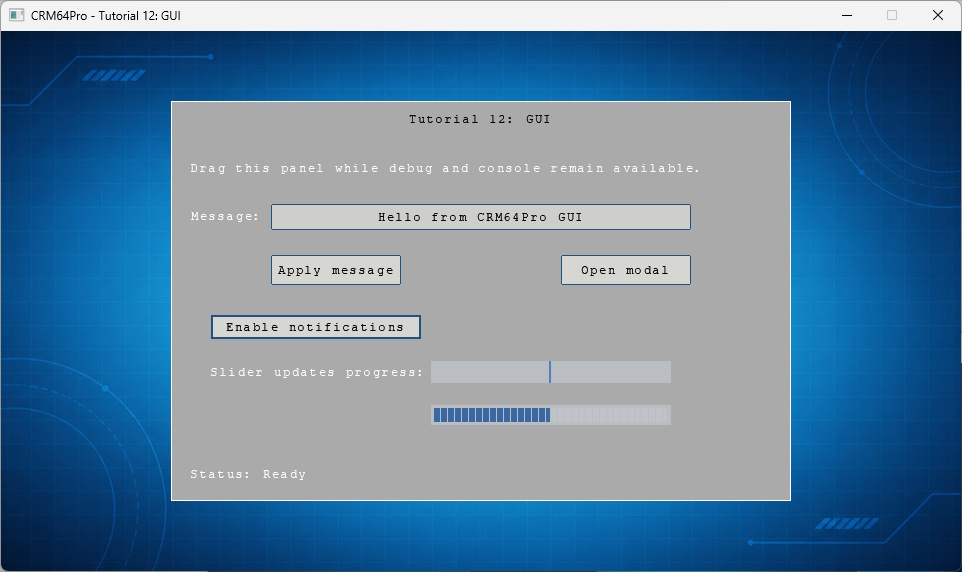
Use the mouse to interact with panels and widgets. Enter commits text, ESC releases text input focus, D toggles the debug window, grave toggles the console, and Q exits.
Prerequisites
- CRM64Pro GDK installed and configured with a supported C++17 compiler.
- Tutorial package downloaded and fully extracted, preserving its folder structure.
- Run Tutorials 02 and 04 so
Tutorial.cdccontains the background and cursor. - Write access to the platform output directory for the log.
What you will learn
- Create modeless and modal panels with
GUIMgr. - Create and configure common typed widgets.
- Assign separate content and title fonts.
- Route semantic GUI events by widget ID.
- Mirror slider values into a progress widget.
- Use application panels beside the debug window and console.
Step by step
Step 1: Give every interactive widget an ID
Semantic GUI events identify their source by widget ID, so one compact enumeration describes the panel controls.
enum eTutorialWidgetID
{
    WID_LABEL_INTRO = 1,
    WID_LABEL_INPUT,
    WID_LABEL_STATUS,
    WID_TEXT_INPUT,
    WID_BUTTON_APPLY,
    WID_BUTTON_MODAL,
    WID_CHECK_NOTIFICATIONS,
    WID_LABEL_SLIDER,
    WID_SLIDER_VALUE,
    WID_PROGRESS_VALUE,
    WID_LABEL_MODAL,
    WID_BUTTON_CONFIRM,
    WID_BUTTON_CLOSE
};
Step 2: Create a modeless panel
Create the panel through GUIMgr, validate it, then configure its base widget and title.
// A modeless panel remains interactive alongside other modeless panels.
mLog.msg(LL_INFO, "  Create modeless panel ... ");
rState.idMainPanel = mC64.guiMgr().create("TutorialGUIMain");
Panel* pPanel = mC64.guiMgr().getPanel(rState.idMainPanel);
if(rState.idMainPanel < 0 || pPanel == nullptr)
{
    logTaskFailed(mLog, rState.idMainPanel);
    return false;
}

pPanel->baseWidget().setSize(620, 400);
pPanel->baseWidget().setPosition(PH_CENTER, PH_CENTER);
// The panel base widget font is used by the title, independently from its children.
pPanel->baseWidget().setFont(rState.idTitleFont);
pPanel->baseWidget().setFeatures(WF_DRAGDROP | WF_FADE, true);
pPanel->setTitle("Tutorial 12: GUI", PH_CENTER, Position(PH_TOP, 12));
pPanel->setPanelType(PT_MODELESS);
Step 3: Create typed widgets
The panel owns the returned widgets. Validate the complete set once before configuring it.
// Typed create helpers return widgets owned by the panel. Widget IDs are
// later used to route semantic events without keeping every pointer.
WidgetLabel* pLabel = pPanel->createLabel("lblIntro", WID_LABEL_INTRO);
WidgetLabel* pInputLabel = pPanel->createLabel("lblInput", WID_LABEL_INPUT);
WidgetLabel* pStatus = pPanel->createLabel("lblStatus", WID_LABEL_STATUS);
WidgetTextEdit* pInput = pPanel->createTextEdit("txtInput", WID_TEXT_INPUT);
WidgetButton* pApply = pPanel->createButton("btnApply", WID_BUTTON_APPLY);
WidgetButton* pModal = pPanel->createButton("btnModal", WID_BUTTON_MODAL);
WidgetCheckBox* pNotifications = pPanel->createCheckBox("chkNotifications", WID_CHECK_NOTIFICATIONS);
WidgetLabel* pSliderLabel = pPanel->createLabel("lblSlider", WID_LABEL_SLIDER);
WidgetSlider* pSlider = pPanel->createSlider("sldValue", WID_SLIDER_VALUE, SA_HORIZONTAL);
WidgetProgress* pProgress = pPanel->createProgress("prgValue", WID_PROGRESS_VALUE);
if(!pLabel || !pInputLabel || !pStatus || !pInput || !pApply || !pModal ||
    !pNotifications || !pSliderLabel || !pSlider || !pProgress)
{
    logTaskFailed(mLog);
    return false;
}
Step 4: Configure text input
Set the font, size, initial text, alignment and focus behavior directly on the text-edit widget.
pInput->setFont(rState.idTitleFont);
pInput->setSize(420, 26);
pInput->setText("Hello from CRM64Pro GUI");
pInput->setTextAlign(WTA_CENTER);
pInput->setPosition(Position(PH_LEFT, 100), Position(PH_TOP, 103));
// Enter commits the text. ESC or pointer focus loss releases input focus.
pInput->setFeatures(WF_LOSTFOCUS, true);
Step 5: Pair a slider with progress
Give both widgets the same range. The slider accepts input while the progress widget displays the current value.
// Slider and progress use the same range. The slider is interactive; the
// progress widget is updated from EC_WIDGET_VALUECHANGED events.
pSlider->setSize(240, 22);
pSlider->setRange(0, 100);
pSlider->setValue(rState.iSliderValue);
pSlider->setPosition(Position(PH_LEFT, 260), Position(PH_TOP, 260));

pProgress->setSize(240, 20);
pProgress->setRange(0, 100);
pProgress->setValue(rState.iSliderValue);
pProgress->setPosition(Position(PH_LEFT, 260), Position(PH_TOP, 304));
Step 6: Add a modal panel
A modal panel uses the same widget API, but blocks modeless panels while shown. Keep it hidden until requested.
pPanel->baseWidget().setSize(300, 150);
pPanel->baseWidget().setPosition(PH_CENTER, PH_CENTER);
pPanel->baseWidget().setFont(rState.idTitleFont);
pPanel->setTitle("Modal panel", PH_CENTER, Position(PH_TOP, 12));
pPanel->setPanelType(PT_MODAL);

WidgetLabel* pLabel = pPanel->createLabel("lblModal", WID_LABEL_MODAL);
WidgetButton* pConfirm = pPanel->createButton("btnConfirm", WID_BUTTON_CONFIRM);
WidgetButton* pClose = pPanel->createButton("btnClose", WID_BUTTON_CLOSE);
if(!pLabel || !pConfirm || !pClose)
{
    logTaskFailed(mLog);
    return false;
}
Step 7: Read semantic GUI events
Main::update() returns CRM64Pro widget events through ET_C64. The payload carries the widget ID and, when applicable, its new value.
else if(event.type == ET_C64 &&
    (event.user.code == EC_WIDGET_ACTION || event.user.code == EC_WIDGET_VALUECOMMITTED ||
    event.user.code == EC_WIDGET_TOGGLED || event.user.code == EC_WIDGET_VALUECHANGED))
{
    // Semantic widget events store the widget ID in data1 and the
    // new checkbox or slider value in data2 when applicable.
    const Sint32 iWidgetID = static_cast<Sint32>(reinterpret_cast<intptr_t>(event.user.data1));
    const Sint32 iWidgetValue = static_cast<Sint32>(reinterpret_cast<intptr_t>(event.user.data2));
    state.iWidgetActions++;
Step 8: Open the modal panel
Show the modal panel and move panel focus to it when its button event arrives.
else if(iWidgetID == WID_BUTTON_MODAL)
{
    // Showing a modal panel and assigning focus blocks the modeless panel.
    if(pModalPanel)
    {
        pModalPanel->baseWidget().show();
        mC64.guiMgr().setPanelFocus(state.idModalPanel);
    }
    setStatus(pMainPanel, pConsole, "Modal panel opened");
}
Step 9: Mirror live values
Use the slider event value to update both tutorial state and the read-only progress widget.
else if(iWidgetID == WID_SLIDER_VALUE)
{
    // Mirror the live slider value into the read-only progress display.
    state.iSliderValue = iWidgetValue;
    WidgetProgress* pProgress = pMainPanel ? pMainPanel->getProgress(WID_PROGRESS_VALUE) : nullptr;
    if(pProgress) pProgress->setValue(state.iSliderValue);

    char szStatus[64];
    snprintf(szStatus, sizeof(szStatus), "Progress value: %d", state.iSliderValue);
    setStatus(pMainPanel, pConsole, szStatus);
}
Step 10: Finish the loop and release panels
Exit before another state update after quitting. Closing a panel also releases the widgets it owns.
if(!bRunning) break;
state.fMouseX = mC64.cursorMgr().getX();
state.fMouseY = mC64.cursorMgr().getY();
state.iCurrentRenderRate = static_cast<Sint32>(mC64.timer().getCurrentRFR());
state.iCurrentLogicRate = static_cast<Sint32>(mC64.timer().getCurrentLFR());
updateLogic(state);
// Closing a panel also releases the widgets created inside that panel.
mLog.msg(LL_INFO, " Close GUI windows ... ");
mC64.guiMgr().close(state.idDebugWindow);
mC64.guiMgr().close(state.idModalPanel);
mC64.guiMgr().close(state.idMainPanel);
logTaskOk(mLog);Complete source
Use the source file as the authoritative version of this tutorial.
- View Tutorial_12_GUI.cpp
- Input archive:
Tutorial.cdc - GUI API:
GUIMgr,Paneland typed widgets - Log:
Tutorial_12_GUI.log
Tutorial index