

CRM64Pro Tutorial 07
Tileset maps.
Create a tileset resource, render a tile map, and move the ship only through walkable cells.
Overview
This tutorial extends Tutorial 06 with a tileset resource. It converts Base/tiles.bmp into a Tile, stores it in Tutorial.cdc, and renders a 12×8 map.
The ship moves between grid cells only when the destination tile is walkable. Moon cells demonstrate rendering two transparent tile layers in one location.
Final result
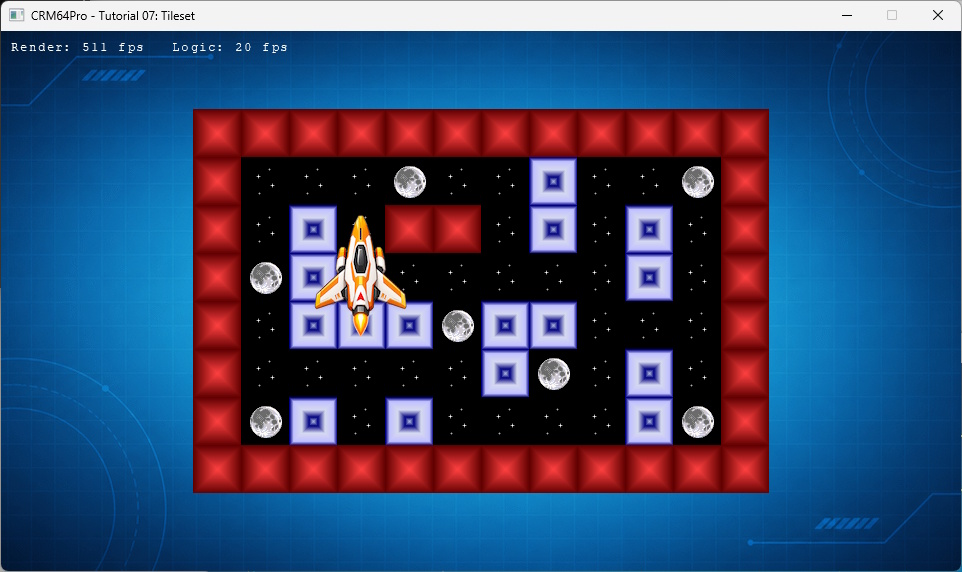
Cursor keys move the ship to the next walkable cell, D toggles the debug window, grave (`) toggles the console, any key or mouse click is logged, and Q or ESC exits.
Prerequisites
- CRM64Pro GDK installed and configured with a supported C++17 compiler.
- Tutorial package downloaded and fully extracted, preserving its folder structure.
- Run Tutorials 02 and 04 so
Tutorial.cdccontains the background, ship and cursor. - Included assets available under
bin/Base/:tiles.bmp. - Write access to the platform output directory.
What you will learn
- Create a
Tilefrom anImageand transfer ownership. - Configure a color key before saving.
- Split an image into 48×48 tiles with
Tile::setOffset(). - Save and load a tile resource through CDC.
- Render a map from tile IDs.
- Restrict movement to walkable cells.
Step by step
Step 1: Verify the shared archive
Tile::save() can create an archive, but this tutorial must extend the earlier resource chain. The check prevents an incomplete tileset-only archive.
// Tutorial 07 introduces one new resource. Earlier tutorials already added
// the background, ship and cursor to the CDC.
mLog.msg(LL_INFO, "  Find Tutorial 04 CDC: %s ... ", OUTPUT_CDC);
if(!mC64.tool().fileExists(OUTPUT_CDC))
{
    logTaskFailed(mLog);
    return false;
}
logTaskOk(mLog);
Step 2: Create the tileset resource
The source image uses magenta as transparency. assignImage() transfers ownership to the tile, and setOffset() divides the image into 48×48 regions starting at ID 1.
mLog.msg(LL_INFO, "  Load tileset image: %s ... ", RESOURCE_TILE_IMAGE);
Sint32 idTileImage = mC64.imageMgr().loadFromFile(RESOURCE_TILE_IMAGE, "tutorialTileImageFile");
Image* pTileImage = mC64.imageMgr().get(idTileImage);
if(idTileImage < 0 || pTileImage == nullptr)
{
    logTaskFailed(mLog, idTileImage);
    return false;
}
pTileImage->setColorKey(255, 0, 255);
logTaskOk(mLog);

mLog.msg(LL_INFO, "  Create tile from image ... ");
Sint32 idTileFile = mC64.tileMgr().create(RESOURCE_TILE_CDC_NAME);
Tile* pTileFile = mC64.tileMgr().get(idTileFile);
if(idTileFile < 0 || pTileFile == nullptr)
{
    logTaskFailed(mLog, idTileFile);
    mC64.imageMgr().close(idTileImage);
    return false;
}
if(pTileFile->assignImage(idTileImage, 1) < 0)
{
    logTaskFailed(mLog);
    mC64.tileMgr().close(idTileFile);
    mC64.imageMgr().close(idTileImage);
    return false;
}
if(!pTileFile->setOffset(1, iTileSize, iTileSize))
{
    logTaskFailed(mLog);
    mC64.tileMgr().close(idTileFile);
    return false;
}
logTaskOk(mLog);
Step 3: Save the tileset
Tile::save() writes the tile and its owned image. Closing the temporary tile releases both before loading a fresh runtime copy.
// Save appends or replaces the tileset resource in Tutorial.cdc.
mLog.msg(LL_INFO, "  Save tileset to CDC ... ");
if(pTileFile->save(OUTPUT_CDC, RESOURCE_TILE_CDC_NAME) < 0)
{
    logTaskFailed(mLog);
    mC64.tileMgr().close(idTileFile);
    return false;
}
logTaskOk(mLog);

// Close the temporary tile. The tutorial loads a fresh copy from CDC next.
mLog.msg(LL_INFO, "  Close temporary tile ... ");
mC64.tileMgr().close(idTileFile);
logTaskOk(mLog);
Step 4: Load the tileset from CDC
TileMgr loads the resource by its stable name and validates it before rendering begins.
mLog.msg(LL_INFO, "  Load tileset from CDC ... ");
state.idTileSet = mC64.tileMgr().load(OUTPUT_CDC, RESOURCE_TILE_CDC_NAME);
Tile* pTileSet = mC64.tileMgr().get(state.idTileSet);
if(state.idTileSet < 0 || pTileSet == nullptr)
{
    logTaskFailed(mLog, state.idTileSet);
    Main::terminate();
    return -1;
}
logTaskOk(mLog);
Step 5: Define walkable cells
Only stars and moon tile IDs are walkable. Coordinates are checked before the fixed map array is accessed.
// Check whether a tile can be walked on.
static bool isWalkableTile(Uint8 iTile)
{
    return iTile == iTileStars || iTile == iTileMoon;
}

// Check whether the map cell can be walked on.
static bool isWalkableCell(Sint32 iCellX, Sint32 iCellY)
{
    if(iCellX < 0 || iCellX >= iMapW) return false;
    if(iCellY < 0 || iCellY >= iMapH) return false;
    return isWalkableTile(iMap[iCellY][iCellX]);
}
Step 6: Render the map
Each map value selects a tile region. Moon cells draw the stars tile first, then the transparent moon tile over it.
// Draw the tile map.
static void renderMap(Tile* pTileSet)
{
    if(!pTileSet) return;

    for(Sint32 iY = 0; iY < iMapH; ++iY)
    {
        for(Sint32 iX = 0; iX < iMapW; ++iX)
        {
            pTileSet->setPosition(static_cast<float>(iMapX + iX * iTileSize), static_cast<float>(iMapY + iY * iTileSize));
            if(iMap[iY][iX] == iTileMoon)
            {
                pTileSet->render(iTileStars);
            }
            pTileSet->render(iMap[iY][iX]);
        }
    }
}
Step 7: Move between map cells
Movement rejects blocked destinations, then centers the ship image in an accepted cell.
// Move the player when the destination cell is walkable.
static void tryMovePlayer(TutorialState& rState, Image* pPlayerImage, Sint32 iDX, Sint32 iDY, Log& mLog)
{
    const Sint32 iNextX = rState.iPlayerCellX + iDX;
    const Sint32 iNextY = rState.iPlayerCellY + iDY;

    if(!isWalkableCell(iNextX, iNextY))
    {
        mLog.msg(LL_INFO, "  Movement blocked at cell %d, %d\n", iNextX, iNextY);
        return;
    }

    rState.iPlayerCellX = iNextX;
    rState.iPlayerCellY = iNextY;
    placePlayerOnCell(rState, pPlayerImage);
    mLog.msg(LL_INFO, "  Ship moved to cell %d, %d\n", rState.iPlayerCellX, rState.iPlayerCellY);
}
else if(event.key.key == SDLK_LEFT)
{
tryMovePlayer(state, pPlayerImage, -1, 0, mLog);
}
else if(event.key.key == SDLK_RIGHT)
{
tryMovePlayer(state, pPlayerImage, 1, 0, mLog);
}
else if(event.key.key == SDLK_UP)
{
tryMovePlayer(state, pPlayerImage, 0, -1, mLog);
}
else if(event.key.key == SDLK_DOWN)
{
tryMovePlayer(state, pPlayerImage, 0, 1, mLog);
}Step 8: Select the cursor and finish the loop
Select the existing cursor, then exit before the final state update when quitting.
mLog.msg(LL_INFO, "  Select cursor ... ");
if(mC64.cursorMgr().select(state.idCursor) < 0 || !mC64.cursorMgr().show())
{
    logTaskFailed(mLog);
    Main::terminate();
    return -1;
}
logTaskOk(mLog);
if(!bRunning) break;
state.fMouseX = mC64.cursorMgr().getX();
state.fMouseY = mC64.cursorMgr().getY();
state.iCurrentRenderRate = static_cast<Sint32>(mC64.timer().getCurrentRFR());
state.iCurrentLogicRate = static_cast<Sint32>(mC64.timer().getCurrentLFR());
updateLogic(state);Step 9: Release owned resources first
Tiles and cursors can own images, so they close before ImageMgr and the CDC archives.
mLog.msg(LL_INFO, "  Close tiles ... ");
mC64.tileMgr().close(0);
logTaskOk(mLog);
mLog.msg(LL_INFO, "  Close cursors ... ");
mC64.cursorMgr().close(0);
logTaskOk(mLog);
mLog.msg(LL_INFO, "  Close images ... ");
mC64.imageMgr().close(0);
logTaskOk(mLog);
mLog.msg(LL_INFO, "  Close CDC archives ... ");
mC64.archiveMgr().close(0);
logTaskOk(mLog);
Main::terminate();
Complete source
Use the source file as the authoritative version of this tutorial.
- View Tutorial_07_Tileset.cpp
- Asset:
Base/tiles.bmp - Input/output archive:
Tutorial.cdc - Tileset resource:
Tutorial_tiles - Log:
Tutorial_07_Tileset.log
Tutorial index