

CRM64Pro Tutorial 02
System services.
Move rendering into a callback, save named image resources in a CDC archive and add the debug window and built-in console.
Overview
This tutorial extends Tutorial 01 with a Screen render callback, named image resources stored in a CDC archive, a DebugWindow and the built-in Console.
The logic remains fixed at 20 updates per second while rendering runs as often as the selected renderer allows. This separates gameplay timing from presentation without changing the movement code introduced in the first tutorial.
Final result
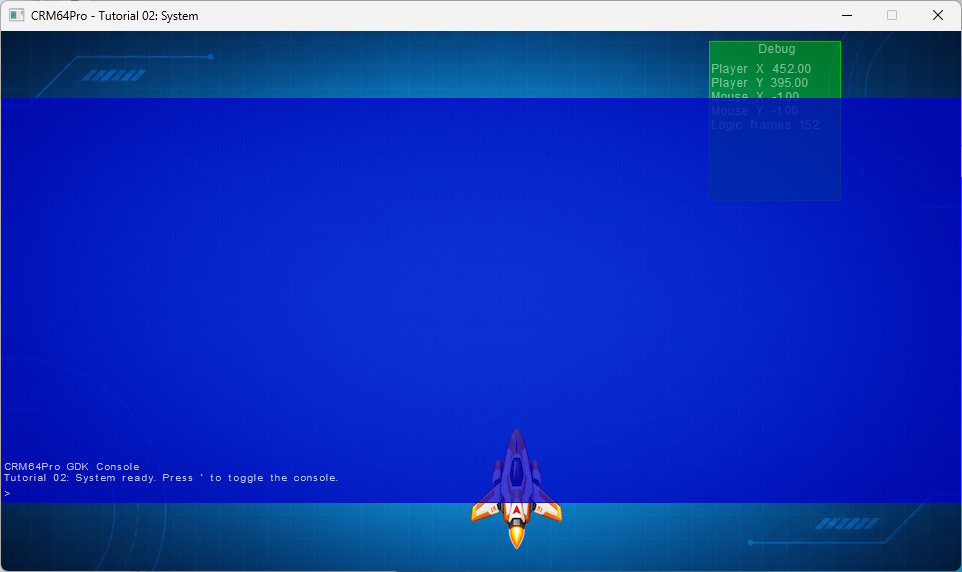
Cursor keys move the ship, D toggles the debug window, grave (`) toggles the console, any key or mouse click is logged, and Q or ESC exits.
Prerequisites
- CRM64Pro GDK installed and configured with a supported C++17 compiler.
- Tutorial package downloaded and fully extracted, preserving its folder structure.
- Complete Tutorial 01 or understand its setup and fixed logic loop.
- Included assets available under
bin/Base/:tutorial_bg.png,tutorial_ship.png. - Write access to the platform output directory for
Tutorial.cdcand the log.
What you will learn
- How to register a
Screenrender callback. - How to save named
Imageresources to a CDC archive. - How to load
Imageresources from a CDC archive by name. - How to create a
DebugWindowand watch live variables. - How to use the built-in
Console. - How to keep fixed-rate logic independent from rendering.
Step by step
Step 1: Configure independent logic and rendering
A render rate of zero lets the screen render whenever possible. The fixed 20 Hz logic rate still controls movement, keeping gameplay speed independent from the render frame rate.
// Fixed-rate timing.
// Render rate 0 lets the screen render as often as possible. Logic rate controls movement.
static const Sint32 iLogicRate = 20;
static const Sint32 iRenderRate = 0;
Step 2: Register the render callback
Main::update() invokes the callback when a render frame is ready. The callback receives the tutorial state, resolves the current image resources and draws the frame.
// Screen render callback.
// Main::update() calls this when the screen is ready to render.
static Sint32 renderWrapper(Sint32, void* pObj)
{
    TutorialState* pState = static_cast<TutorialState*>(pObj);
    if(!pState) return 0;

    ImageMgr& mImageMgr = Main::instance().imageMgr();
    Image* pBgImage = mImageMgr.get(pState->idBgImage);
    Image* pPlayerImage = mImageMgr.get(pState->idPlayerImage);
    renderFrame(pBgImage, pPlayerImage, *pState);

    return 0;
}
mLog.msg(LL_INFO, " Set render callback ... ");
if(!pScreen->setRenderCallback([&state](Sint32 iMode) { return renderWrapper(iMode, &state); }))
{
logTaskFailed(mLog);
Main::terminate();
return -1;
}
logTaskOk(mLog);Step 3: Choose the CDC archive
The image save calls create Tutorial.cdc if needed or update its named resources when it already exists. They open the archive for writing and release it after saving, so the tutorial does not remove an existing archive.
#define OUTPUT_CDC OUTPUTDIR"Tutorial.cdc"Step 4: Save named image resources
Each PNG is loaded as a normal Image, saved to the CDC under a stable resource name, then closed because the file-backed object is no longer needed. The ship follows the same sequence with RESOURCE_PLAYER_CDC_NAME.
// Load the background from a normal image file.
mLog.msg(LL_INFO, "  Load background image: %s ... ", RESOURCE_BG_IMAGE);
Sint32 idBgFile = mC64.imageMgr().loadFromFile(RESOURCE_BG_IMAGE, "tutorialSystemBgFile");
Image* pBgFileImage = mC64.imageMgr().get(idBgFile);
if(idBgFile < 0 || pBgFileImage == nullptr)
{
    logTaskFailed(mLog, idBgFile);
    Main::terminate();
    return -1;
}
logTaskOk(mLog);

// Save the background first.
mLog.msg(LL_INFO, "  Save background image to CDC ... ");
if(pBgFileImage->save(OUTPUT_CDC, RESOURCE_BG_CDC_NAME) < 0)
{
    logTaskFailed(mLog);
    Main::terminate();
    return -1;
}
mC64.imageMgr().close(idBgFile);
logTaskOk(mLog);
Step 5: Load images by resource name
ImageMgr loads the saved resources from the CDC by archive path and resource name. The order of blocks inside the archive does not matter.
// Load the background by its CDC resource name.
mLog.msg(LL_INFO, "  Load background image from CDC ... ");
state.idBgImage = mC64.imageMgr().load(OUTPUT_CDC, RESOURCE_BG_CDC_NAME);
if(state.idBgImage < 0)
{
    logTaskFailed(mLog, state.idBgImage);
    Main::terminate();
    return -1;
}
logTaskOk(mLog);

// Load the ship by its CDC resource name. Load order is not significant.
mLog.msg(LL_INFO, "  Load ship image from CDC ... ");
state.idPlayerImage = mC64.imageMgr().load(OUTPUT_CDC, RESOURCE_PLAYER_CDC_NAME);
if(state.idPlayerImage < 0)
{
    logTaskFailed(mLog, state.idPlayerImage);
    Main::terminate();
    return -1;
}
logTaskOk(mLog);
Step 6: Add the debug window
The DebugWindow keeps pointers to the watched values and displays their current contents. The values remain members of TutorialState for the whole main loop.
// The DebugWindow displays live values while the program runs.
mLog.msg(LL_INFO, "  Create debug window ... ");
state.idDebugWindow = mC64.guiMgr().create("Debug", CRM64PRO_GUI_DEBUGWINDOW);
DebugWindow* pDebug = mC64.guiMgr().getDebugWindow(state.idDebugWindow);
if(!pDebug)
{
    logTaskFailed(mLog, state.idDebugWindow);
    Main::terminate();
    return -1;
}
pDebug->baseWidget().setPosition(Position(PH_RIGHT, -120), Position(PH_TOP, 10));
pDebug->addWatch("Player X", nullptr, &state.fPlayerX);
pDebug->addWatch("Player Y", nullptr, &state.fPlayerY);
pDebug->addWatch("Mouse X", nullptr, &state.fMouseX);
pDebug->addWatch("Mouse Y", nullptr, &state.fMouseY);
pDebug->addWatch("Logic frames", &state.iLogicFrames);
pDebug->baseWidget().show();
logTaskOk(mLog);
Step 7: Use the built-in console
Main creates the default Console. Log output is already sent there, and the tutorial prints a short ready message when the console is available.
// Main creates the default Console. Log output is also sent there.
Console* pConsole = mC64.guiMgr().getConsole();
if(pConsole) pConsole->print("Tutorial 02: System ready. Press ` to toggle the console.\n");
Step 8: Run fixed logic after event processing
Main::update() processes input and triggers rendering. Once it returns zero, the program updates the watched mouse position and performs one fixed logic step. A quit request exits before that last update.
if(!bRunning) break;
state.fMouseX = mC64.cursorMgr().getX();
state.fMouseY = mC64.cursorMgr().getY();
updateLogic(state, pPlayerImage, 1.0f / static_cast<float>(iLogicRate));
Step 9: Close resources and inspect the CDC
The tutorial closes its GUI and image resources, opens the completed archive read-only to print its information, then closes it and terminates CRM64Pro.
// Close resources owned by this tutorial.
mLog.msg(LL_INFO, "\nCLEANUP\n");
mLog.msg(LL_INFO, "  Close debug window ... ");
mC64.guiMgr().close(state.idDebugWindow);
logTaskOk(mLog);
mLog.msg(LL_INFO, "  Close images ... ");
mC64.imageMgr().close(0);
logTaskOk(mLog);
mLog.msg(LL_INFO, "  Inspect CDC archive ... ");
const Sint32 idCDC = mC64.archiveMgr().load(OUTPUT_CDC);
if(idCDC < 0)
{
    logTaskFailed(mLog, idCDC);
    Main::terminate();
    return -1;
}
logTaskOk(mLog);
mC64.archiveMgr().info();
mLog.msg(LL_INFO, "  Close CDC archive ... ");
mC64.archiveMgr().close(idCDC);
logTaskOk(mLog);
Main::terminate();
Complete source
Use the source file as the authoritative version of this tutorial.
- View Tutorial_02_System.cpp
- Assets:
Base/tutorial_bg.png,Base/tutorial_ship.png - Output:
Tutorial.cdc,Tutorial_02_System.log
Tutorial index