

CRM64Pro Tutorial 01
Basic application setup.
Create the first CRM64Pro application window, load two images, move a ship with the keyboard, log input events and save a screenshot.
Overview
In this tutorial you will build the smallest useful CRM64Pro graphical example. The program opens a 960×540 window, loads a background image and a ship image, moves the ship with the cursor keys and renders everything from the main loop.
The example introduces the standard setup pattern used by later tutorials: initialize memory tracking, access Main, configure logging, initialize timing, create the screen, process input through Main::update(), run fixed-rate logic and release resources cleanly.
Final result
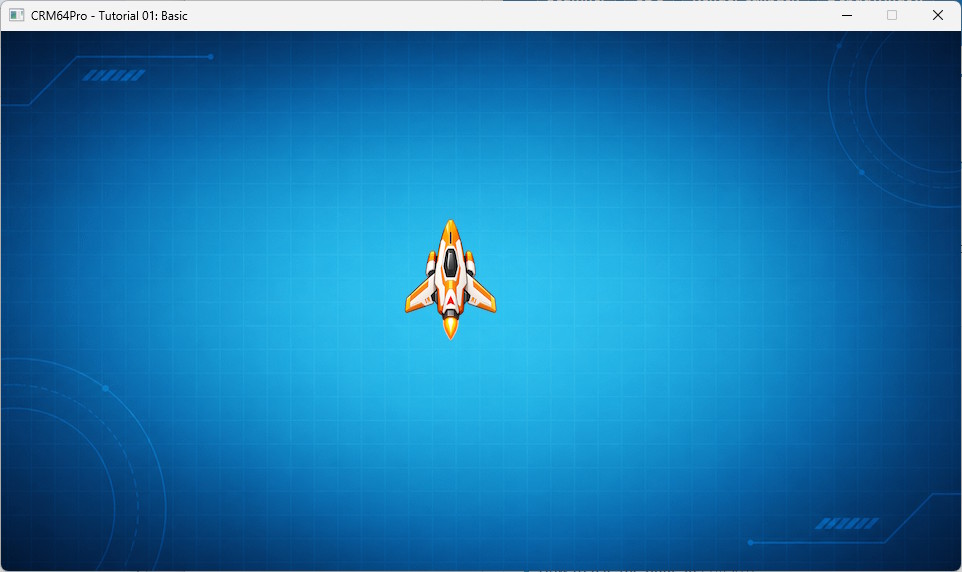
Cursor keys move the ship, S saves Tutorial_01_Basic-Snapshot.png, any key or mouse click is logged, and Q or ESC exits.
Prerequisites
- CRM64Pro GDK installed and configured with a supported C++17 compiler.
- Tutorial package downloaded and fully extracted, preserving its folder structure.
- Included assets available under
bin/Base/:tutorial_bg.pngandtutorial_ship.png.
What you will learn
- How to start CRM64Pro memory tracking with
CMem. - How to access
Mainand core managers. - How to configure
Log,TimerandScreen. - How to load PNG images with
ImageMgr::loadFromFile(). - How to read SDL keyboard and mouse events through
Main::update(). - How to update movement at a fixed logic rate and render images.
Step by step
Step 1: Select the renderer and start memory tracking
The example starts by reading the renderer option, then enables CRM64Pro memory tracking before any engine resources are created. runParameterReadRender() is a shared tutorial helper that reads the command-line renderer option and writes the selected renderer driver into eRenderer; if the option is invalid, the tutorial exits before creating the screen.
eConfigRendererDriver eRenderer = CRD_SOFTWARE;
if(!runParameterReadRender(argc, argv, eRenderer)) return 1;

// Start CRM64Pro memory tracking before creating engine resources.
// atexit() releases memory tracking data when the program exits.
CMem::setStatsLevel(CMem::MSL_NORMAL);
atexit(CMem::destroy);
Step 2: Access Main and configure logging
Main::instance() gives the program access to the engine managers. The log writes to stdout and to a platform-specific output file.
// Main gives access to the CRM64Pro managers.
Main& mC64 = Main::instance();
Log& mLog = *mC64.logMgr().get();

TutorialState state;

// Write log output to stdout and to a file under validation/bin.
mLog.init("Tutorial_01_Basic", LL_DEBUG, LM_FILE | LM_STDOUT, OUTPUTDIR"Tutorial_01_Basic.log");
Step 3: Initialize timer and screen
The timer is initialized before the main loop. This first tutorial updates and renders at the same fixed rate of 20 frames per second. Later tutorials separate fixed-rate logic from rendering through a screen callback.
// Initialize the timer before calling Main::update().
// setRate() receives render frames per second, then logic frames per second.
mLog.msg(LL_INFO, "  Initialize timer ... ");
if(!mC64.timer().init())
{
    logTaskFailed(mLog);
    Main::terminate();
    return -1;
}
logTaskOk(mLog);

mLog.msg(LL_INFO, "  Set frame rates (render=%d, logic=%d) ... ", iRenderRate, iLogicRate);
if(!mC64.timer().setRate(iRenderRate, iLogicRate))
{
    logTaskFailed(mLog);
    Main::terminate();
    return -1;
}
logTaskOk(mLog);

// Add a 1 ms idle delay inside Main::update().
mC64.configMgr().setMTFriendly(1);

// Configure and show the default screen.
Screen* pScreen = mC64.configMgr().get();
pScreen->setSize(iScreenW, iScreenH);
pScreen->setDriver(eRenderer);
pScreen->setTitle("CRM64Pro - Tutorial 01: Basic");

mLog.msg(LL_INFO, "  Create screen (%dx%d) ... ", iScreenW, iScreenH);
if(pScreen->show() < 0)
{
    mLog.msg(LL_CRITICAL, "FAILED\n");

    // Standard setup error path:
    // 1. Log what failed.
    // 2. Terminate the engine so initialized managers are cleaned up.
    // 3. Return -1 to report application failure to the operating system.
    Main::terminate();
    return -1;
}
logTaskOk(mLog);
Step 4: Load external images
The background and ship are loaded from normal PNG files. The returned resource IDs are stored in TutorialState, then resolved to Image* pointers.
// Load external PNG images from validation/bin/Base.
// The second parameter is the resource name stored by ImageMgr.
mLog.msg(LL_INFO, "  Load background image: %s ... ", RESOURCE_BG_IMAGE);
state.idBgImage = mC64.imageMgr().loadFromFile(RESOURCE_BG_IMAGE, "tutorialBasicBg");
if(state.idBgImage < 0)
{
    logTaskFailed(mLog, state.idBgImage);
    Main::terminate();
    return -1;
}
logTaskOk(mLog);

mLog.msg(LL_INFO, "  Load ship image: %s ... ", RESOURCE_PLAYER_IMAGE);
state.idPlayerImage = mC64.imageMgr().loadFromFile(RESOURCE_PLAYER_IMAGE, "tutorialBasicPlayer");
if(state.idPlayerImage < 0)
{
    logTaskFailed(mLog, state.idPlayerImage);
    Main::terminate();
    return -1;
}
logTaskOk(mLog);

mLog.msg(LL_INFO, "  Access background image object ... ");
Image* pBgImage = mC64.imageMgr().get(state.idBgImage);
if(pBgImage == nullptr)
{
    logTaskFailed(mLog);
    Main::terminate();
    return -1;
}
logTaskOk(mLog);

mLog.msg(LL_INFO, "  Access ship image object ... ");
Image* pPlayerImage = mC64.imageMgr().get(state.idPlayerImage);
if(pPlayerImage == nullptr)
{
    logTaskFailed(mLog);
    Main::terminate();
    return -1;
}
logTaskOk(mLog);
Step 5: Process input
The main loop repeatedly calls Main::update(&event) while input and render processing continues; a return value of 0 signals the next fixed logic step. Quit events stop the loop, cursor keys update movement flags, and S saves a screenshot.
while(mC64.update(&event))
{
    if(event.type == SDL_EVENT_QUIT)
    {
        bRunning = false;
    }
    else if(event.type == SDL_EVENT_KEY_DOWN)
    {
        // SDL3 stores the key value in event.key.key.
        mLog.msg(LL_INFO, "  Key pressed: %s (%d)\n", SDL_GetKeyName(event.key.key), event.key.key);

        if(event.key.key == SDLK_Q || event.key.key == SDLK_ESCAPE)
        {
            bRunning = false;
        }
        else if(event.key.key == SDLK_LEFT)
        {
            state.bMoveLeft = true;
        }
        else if(event.key.key == SDLK_RIGHT)
        {
            state.bMoveRight = true;
        }
        else if(event.key.key == SDLK_UP)
        {
            state.bMoveUp = true;
        }
        else if(event.key.key == SDLK_DOWN)
        {
            state.bMoveDown = true;
        }
        else if(event.key.key == SDLK_S)
        {
            mLog.msg(LL_INFO, "  Save screen snapshot: %s ... ", OUTPUT_SNAPSHOT);
            if(pScreen->saveSnapshot(OUTPUT_SNAPSHOT) == 0)
            {
                logTaskOk(mLog);
            }
            else
            {
                logTaskFailed(mLog);
            }
        }
    }
    else if(event.type == SDL_EVENT_KEY_UP)
    {
        if(event.key.key == SDLK_LEFT) state.bMoveLeft = false;
        else if(event.key.key == SDLK_RIGHT) state.bMoveRight = false;
        else if(event.key.key == SDLK_UP) state.bMoveUp = false;
        else if(event.key.key == SDLK_DOWN) state.bMoveDown = false;
    }
    else if(event.type == SDL_EVENT_MOUSE_BUTTON_DOWN)
    {
        mLog.msg(LL_INFO, "  Mouse clicked: button %d at %d, %d\n", event.button.button, (Sint32)event.button.x, (Sint32)event.button.y);
    }
}
Step 6: Update movement
updateLogic() converts movement flags into a per-step delta. The position is clamped so the ship stays inside the screen.
static void updateLogic(TutorialState& rState, Image* pPlayerImage, float fDeltaTime)
{
    if(!pPlayerImage) return;

    float fDX = 0.0f;
    float fDY = 0.0f;

    if(rState.bMoveLeft) fDX -= fMoveSpeed * fDeltaTime;
    if(rState.bMoveRight) fDX += fMoveSpeed * fDeltaTime;
    if(rState.bMoveUp) fDY -= fMoveSpeed * fDeltaTime;
    if(rState.bMoveDown) fDY += fMoveSpeed * fDeltaTime;

    const float fMaxX = static_cast<float>(iScreenW - pPlayerImage->getWidth());
    const float fMaxY = static_cast<float>(iScreenH - pPlayerImage->getHeight());
    rState.fPlayerX = clampFloat(rState.fPlayerX + fDX, 0.0f, fMaxX);
    rState.fPlayerY = clampFloat(rState.fPlayerY + fDY, 0.0f, fMaxY);
}
Step 7: Render the frame
The frame is rendered directly from main(): draw the background first, then draw the ship at the current state position.
static void renderFrame(Image* pBgImage, Image* pPlayerImage, const TutorialState& rState)
{
    if(pBgImage) pBgImage->render();

    if(pPlayerImage)
    {
        SDL_FRect rDst = {
            rState.fPlayerX,
            rState.fPlayerY,
            static_cast<float>(pPlayerImage->getWidth()),
            static_cast<float>(pPlayerImage->getHeight())
        };
        pPlayerImage->render(0, nullptr, &rDst);
    }
}
Step 8: Run the loop
After all pending events have been processed, the loop exits immediately when a quit request was received. Otherwise, it runs one fixed logic update and renders the current frame.
if(!bRunning) break;
updateLogic(state, pPlayerImage, 1.0f / static_cast<float>(iLogicRate));
renderFrame(pBgImage, pPlayerImage, state);
Step 9: Cleanup
The program closes the ship image by ID, closes the remaining images, then terminates the engine.
mC64.imageMgr().info();
// Close one image by id, then close the remaining ImageMgr resources.
// close(0) closes all resources owned by that manager.
mLog.msg(LL_INFO, "\nCLEANUP\n");
mLog.msg(LL_INFO, "  Close ship image by id ... ");
mC64.imageMgr().close(state.idPlayerImage);
logTaskOk(mLog);
mLog.msg(LL_INFO, "  Close remaining images ... ");
mC64.imageMgr().close(0);
logTaskOk(mLog);
Main::terminate();
Complete source
Use the source file as the authoritative version of this tutorial.
- View Tutorial_01_Basic.cpp
- Assets:
Base/tutorial_bg.png,Base/tutorial_ship.png - Output:
Tutorial_01_Basic.log, optionalTutorial_01_Basic-Snapshot.png
Previous tutorial
This is the first tutorial in the series.
Tutorial index
Next tutorial
Add render callbacks, CDC image resources and debugging tools.