

CRM64Pro Tutorial 03
Configuration.
Open the built-in configuration screen, then save and reload its screen and audio settings from the shared CDC archive.
Overview
This tutorial extends Tutorial 02 with the built-in configuration screen. It stores config.xml in the existing Tutorial.cdc, beside the background and ship resources.
Loading a configuration recreates the default Screen, so the tutorial also restores the window title and render callback after every load.
Final result
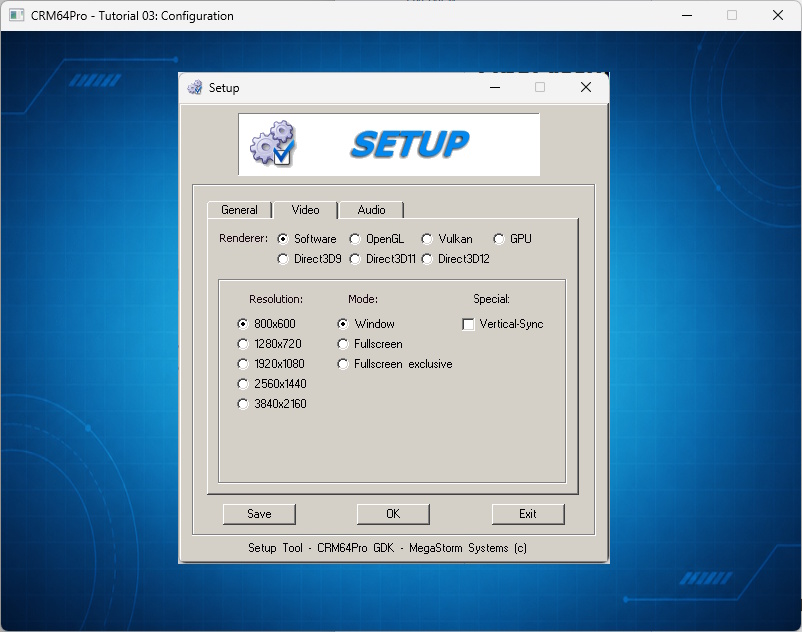
C opens setup, S saves, L loads, grave (`) toggles the console, and Q or ESC exits.
Prerequisites
- CRM64Pro GDK installed and configured with a supported C++17 compiler.
- Tutorial package downloaded and fully extracted, preserving its folder structure.
- Run Tutorial 02 first to create
Tutorial.cdc. - The archive must contain
Tutorial_bgandTutorial_ship. - Write access to the platform output directory.
What you will learn
- How to open the built-in
ConfigMgrsetup screen. - How to store configuration XML in a shared CDC archive.
- How to save and load the active configuration.
- How to restore
Screenstate after loading. - How to preserve existing resources in
Tutorial.cdc.
Step by step
Step 1: Reuse the Tutorial 02 archive
The configuration is another named resource in the shared archive. The tutorial checks that Tutorial 02 created the archive instead of silently creating one without the required images.
#define RESOURCE_BG_CDC_NAME "Tutorial_bg"
#define RESOURCE_PLAYER_CDC_NAME "Tutorial_ship"
#define RESOURCE_CONFIG_CDC_NAME "config.xml"
#define OUTPUT_CDC OUTPUTDIR"Tutorial.cdc"
// Tutorial 02 creates the shared archive and its image resources.
mLog.msg(LL_INFO, " Find Tutorial 02 CDC: %s ... ", OUTPUT_CDC);
if(!mC64.tool().fileExists(OUTPUT_CDC))
{
logTaskFailed(mLog);
Main::terminate();
return -1;
}
logTaskOk(mLog);Step 2: Open the configuration screen
ConfigMgr::setup() presents the built-in setup UI and writes config.xml to Tutorial.cdc. A negative return value stops startup.
// The built-in setup screen saves config.xml into Tutorial.cdc.
mLog.msg(LL_INFO, "  Open configuration screen ... ");
const Sint32 iSetupRet = mC64.configMgr().setup(RESOURCE_CONFIG_CDC_NAME, OUTPUT_CDC);
if(iSetupRet < 0)
{
    logTaskFailed(mLog, iSetupRet);
    Main::terminate();
    return -1;
}
logTaskOk(mLog);
Step 3: Load configuration and restore screen state
ConfigMgr::load() applies the saved settings and recreates the default Screen. The title and render callback are assigned after every successful load.
// Load config.xml and restore state tied to the recreated default screen.
static bool loadConfiguration(Main& mC64, Log& mLog, TutorialState& rState)
{
    mLog.msg(LL_INFO, "  Load configuration from CDC ... ");
    const Sint32 iRet = mC64.configMgr().load(OUTPUT_CDC, RESOURCE_CONFIG_CDC_NAME);
    if(iRet < 0)
    {
        logTaskFailed(mLog, iRet);
        return false;
    }

    Screen* pScreen = mC64.configMgr().get();
    if(!pScreen)
    {
        logTaskFailed(mLog);
        return false;
    }

    pScreen->setTitle("CRM64Pro - Tutorial 03: Configuration");
    if(!pScreen->setRenderCallback([&rState](Sint32 iMode) { return renderWrapper(iMode, &rState); }))
    {
        logTaskFailed(mLog);
        return false;
    }

    logTaskOk(mLog);
    return true;
}
Step 4: Load the existing images
The configuration resource does not replace the image blocks saved by Tutorial 02. ImageMgr loads them by their original names.
mLog.msg(LL_INFO, "  Load background image from CDC ... ");
state.idBgImage = mC64.imageMgr().load(OUTPUT_CDC, RESOURCE_BG_CDC_NAME);
if(state.idBgImage < 0)
{
    logTaskFailed(mLog, state.idBgImage);
    Main::terminate();
    return -1;
}
logTaskOk(mLog);

mLog.msg(LL_INFO, "  Load ship image from CDC ... ");
state.idPlayerImage = mC64.imageMgr().load(OUTPUT_CDC, RESOURCE_PLAYER_CDC_NAME);
if(state.idPlayerImage < 0)
{
    logTaskFailed(mLog, state.idPlayerImage);
    Main::terminate();
    return -1;
}
logTaskOk(mLog);
Step 5: Defer configuration commands
Key events only set command flags. Setup, save and load run after the current Main::update() event batch, keeping screen reconfiguration out of event dispatch.
else if(event.type == SDL_EVENT_KEY_DOWN && !event.key.repeat)
{
    if(event.key.key == SDLK_Q || event.key.key == SDLK_ESCAPE) bRunning = false;
    else if(event.key.key == SDLK_C) bOpenSetup = true;
    else if(event.key.key == SDLK_S) bSaveConfig = true;
    else if(event.key.key == SDLK_L) bLoadConfig = true;
}
Step 6: Save or reload on demand
Saving updates config.xml without disturbing other CDC resources. Loading uses the same helper as startup so screen state is always restored.
if(bSaveConfig)
{
    bSaveConfig = false;
    mLog.msg(LL_INFO, "  Save configuration to CDC ... ");
    const Sint32 iRet = mC64.configMgr().save(RESOURCE_CONFIG_CDC_NAME, OUTPUT_CDC);
    if(iRet < 0) logTaskFailed(mLog, iRet);
    else logTaskOk(mLog);
}

if(bLoadConfig)
{
    bLoadConfig = false;
    if(!loadConfiguration(mC64, mLog, state)) bRunning = false;
}
Step 7: Release resources
Image and archive resources are closed before CRM64Pro terminates.
mLog.msg(LL_INFO, "\nCLEANUP\n");
mLog.msg(LL_INFO, "  Close images and CDC archives ... ");
mC64.imageMgr().close(0);
mC64.archiveMgr().close(0);
logTaskOk(mLog);
Main::terminate();
Complete source
Use the source file as the authoritative version of this tutorial.
- View Tutorial_03_Config.cpp
- Input/output archive:
Tutorial.cdc - Configuration resource:
config.xml - Log:
Tutorial_03_Config.log
Previous tutorial
Add render callbacks, CDC image resources and debugging tools.
Tutorial index